A Dive Into The Employers Platform
(Updated 17 Jun 2018)
Despite its name, the Employers platform serves 2 other types of users - Group Admins and Copywriters. The following is a rough breakdown of the parts of the platform that caters to each group of users:
- Employers
- Group Admins
- Group Admin Portal
- Copywriters
- Copywriting Portal
Employers
Free-to-use Features
(To be updated)
Upgrading To A TalentHunt Job
A TalentHunt Approved job will be able to unlock TalentHunt features (Recommendations, Bookmarks, Connections). Find out how to upgrade a job to a TalentHunt job below.
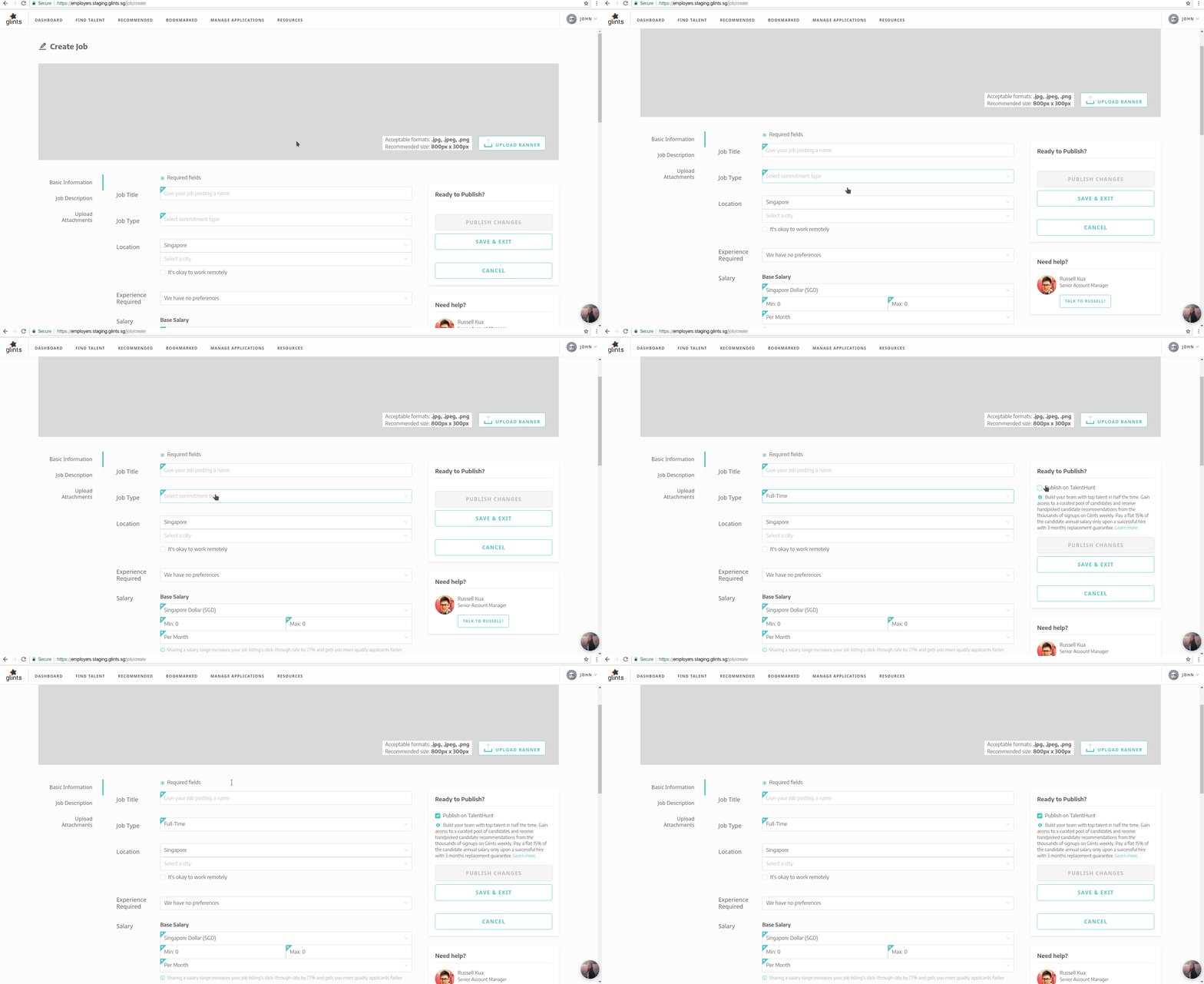 Upgrade Job To TalentHunt
Only full-time jobs can be upgraded.
- On the Create Job/ Edit Job page, select 'Full-Time' under 'Job Type'
- A checkbox 'Publish on TalentHunt' will appear.
- Check it.
- Click on 'Publish Changes'.
- That's all!
Once posted, this job will be added to the 'Talent Search - Company' group with a PENDING status. Companies will
not be able to undo this action once a job has been upgraded.
TalentHunt
TalentHunt consists of several premium features (Talent Search, Recommendations, Bookmarks, Connections) that are accessible by TalentHunt Approved employers.
On the tech side, TalentHunt Approved employers are users that belong to a company in the Talent Search - Company group AND is
APPROVED (Check the GroupMembers table, filter by CompanyId). By default, any newly created company will be
added to the Talent Search - Company group with a PENDING status. If a company is rejected, it will be removed
from the group.
If you're a Glints Recruiter and wondering how to approve a company to TalentHunt, read on!
Approve Company To TalentHunt
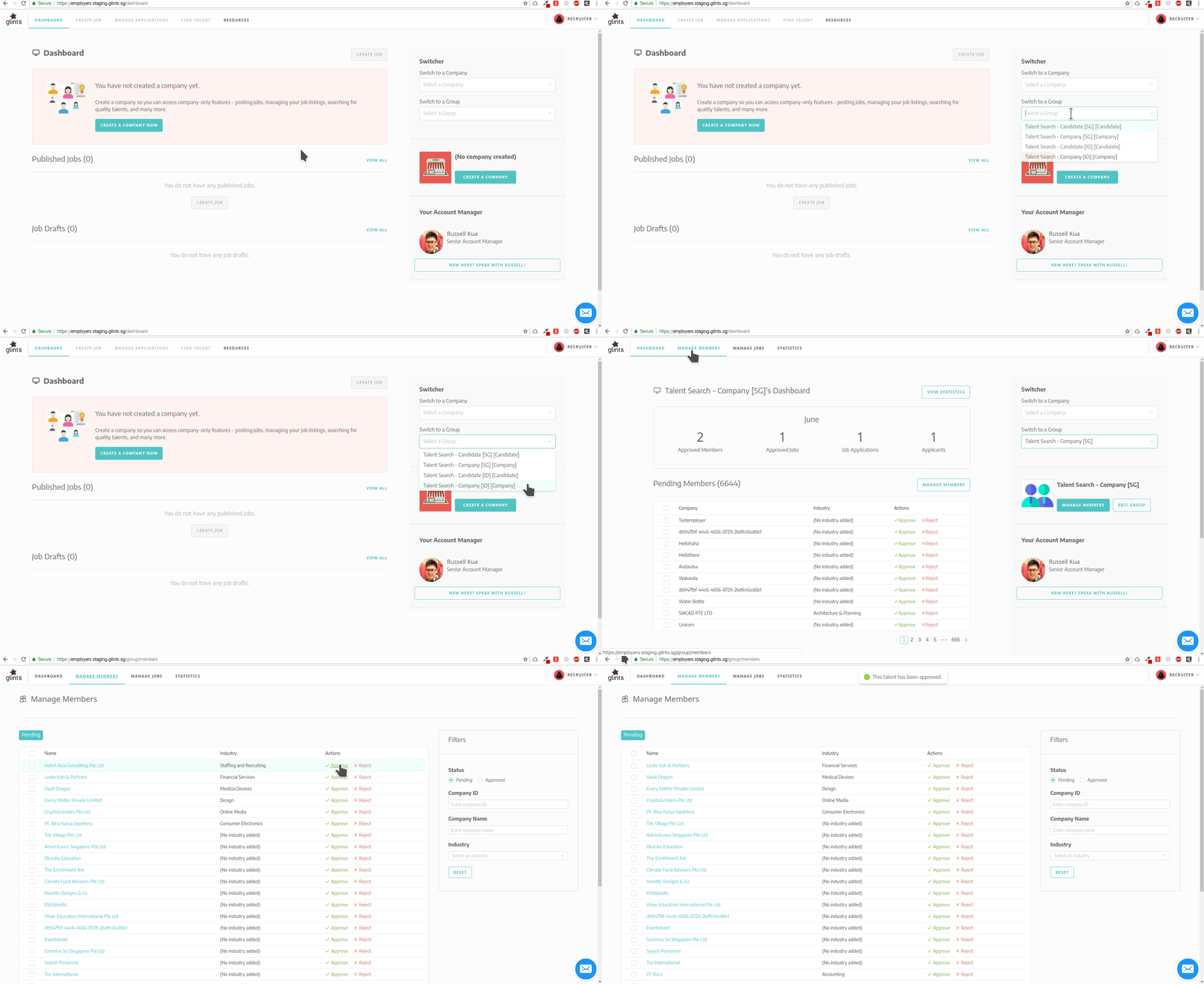 Approve Company To TalentHunt
- Login to Glints Employers using your recruiter account.
If you don't have your own recruiter account yet, do ping@freddyon Slack. He'll set you up with one using your glints email.
- Under Switcher, select either 'Talent Search - Company [SG]' or 'Talent Search - Company [ID]' group, depending on which site (ID or SG) the employer signed up on.
- Click on 'Manage Members' on the menu.
- Click on 'Approve' for the company you wish to grant TalentHunt access to.
- That's all!
TalentHunt Landing Page
This beautiful page introduces TalentHunt to employers.
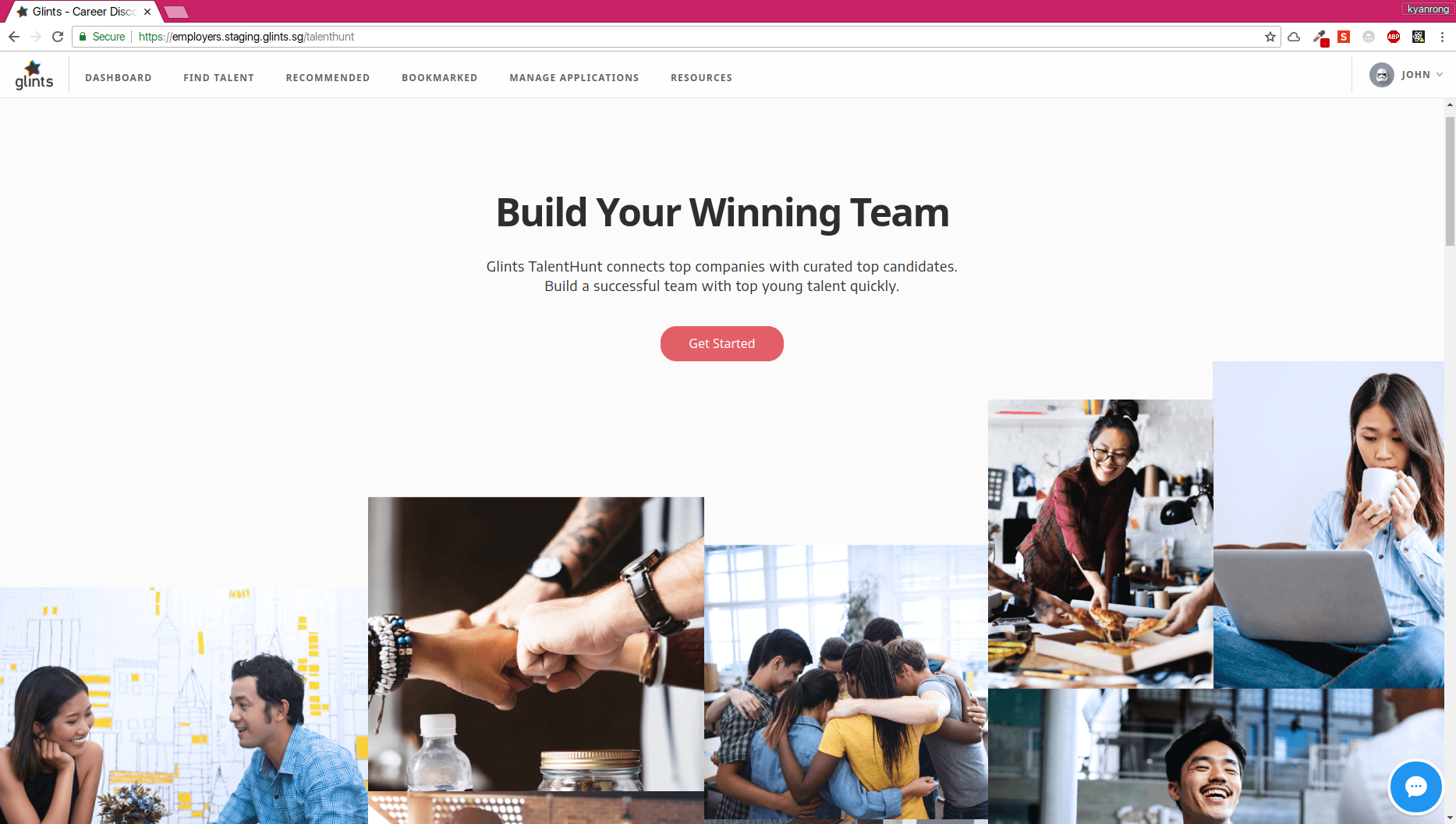 TalentHunt Landing Page
Currently, the call-to-action (CTA) buttons lead to different pages for ID and SG:
For SG, the CTAs lead to an Unbounce page (http://talenthunt.glints.com/companysignup/) where leads are collected.
For ID, the CTAs lead to a TalentHunt Interest form on our site. New Employers are required to sign up for an account before they are redirected straight to the TalentHunt Interest page. Note that these employers will not have to go through onboarding, nor will they see the unverified email page.
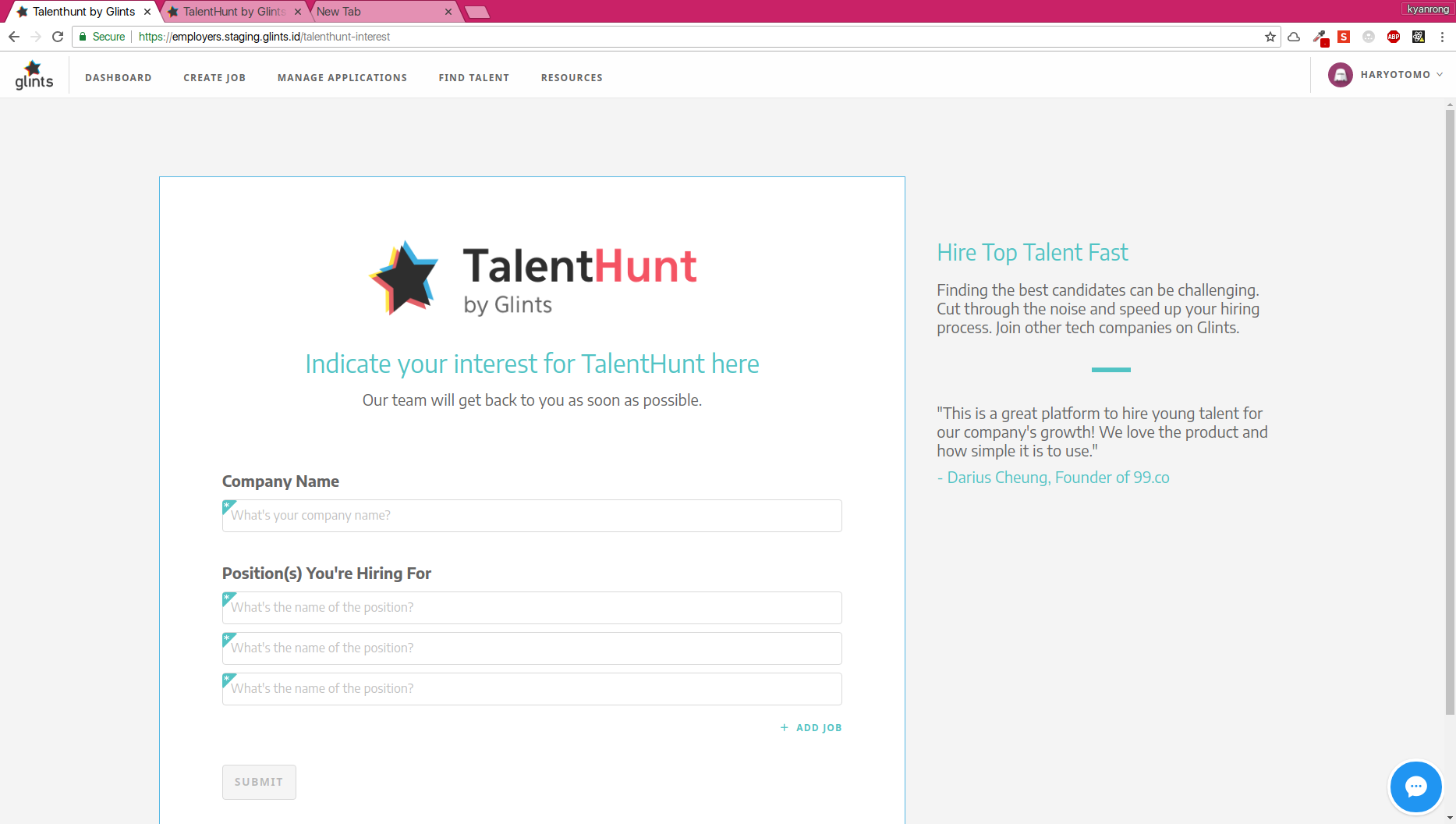 TalentHunt Interest Form
Leads collected from this form can be retrieved from this Metabase question.
Information about the company and position(s) can be found under the metadata column, within the talenthunt-landing object.
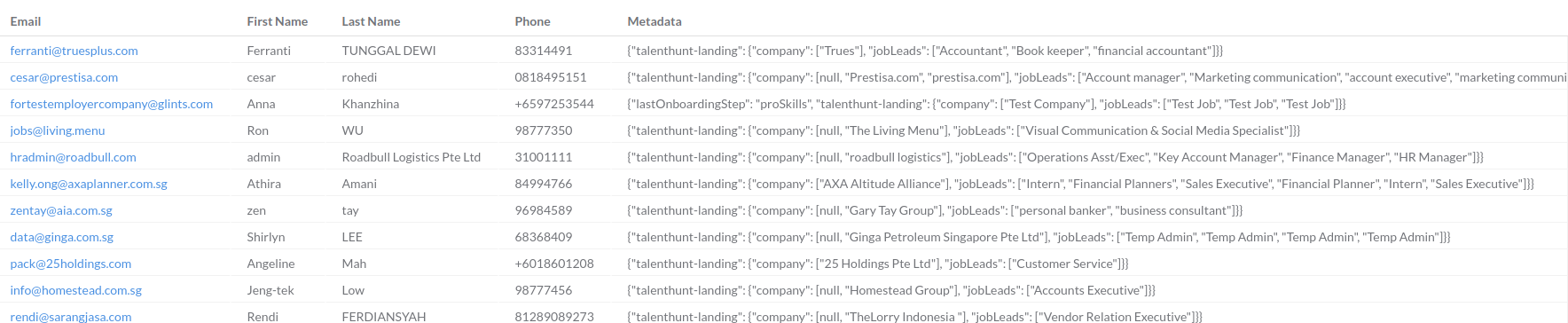
Metabase query from TalentHunt Interest form
If there's any issue with the Metabase question, please drop a note in the #product Slack channel.
TalentHunt Dashboard
This is the TalentHunt Dashboard for TalentHunt Approved companies. Do note the menu items - TalentHunt features (Find Talent, Recommended, Bookmarked) should be present.
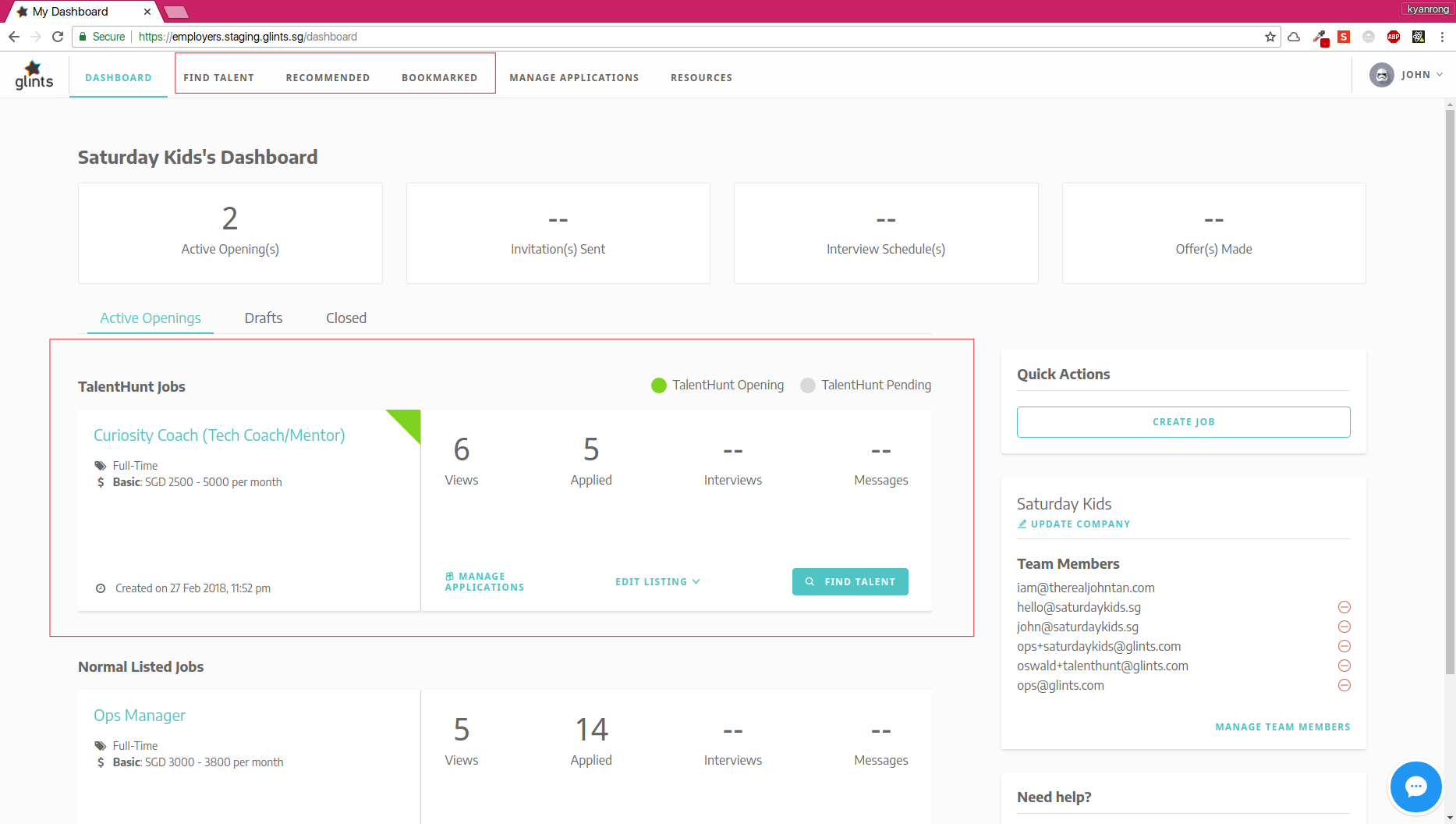 TalentHunt Dashboard for TalentHunt Approved Companies
TalentHunt Jobs
Jobs are separated into 'TalentHunt Jobs' and 'Normal Listed Jobs'.
TalentHunt Jobs are further differentiated by a colored label indicating their TalentHunt status. A green label indicates that the TalentHunt Job is approved while a grey label indicates that the TalentHunt Job is still pending approval.
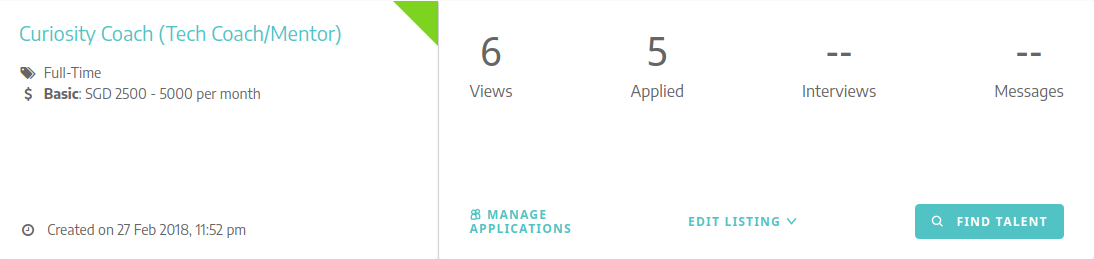
TalentHunt Approved job
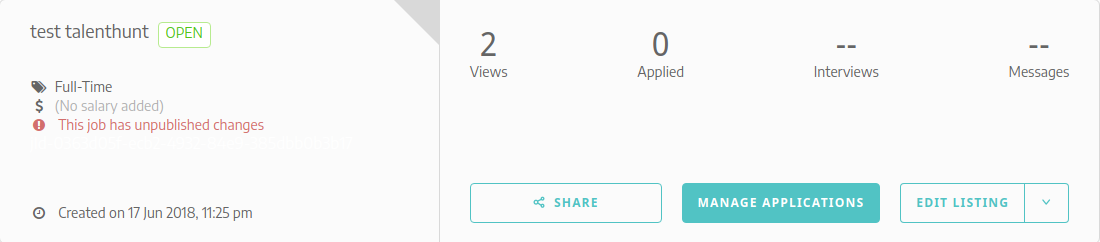
TalentHunt Pending job
On the tech side, a TalentHunt job is a job that belongs to the Talent Search - Company group and can have a status of APPROVED,
PENDING, or REJECTED (Check the GroupJobs table, filter by JobId). The default status for a TalentHunt job is PENDING.
Important!
These TalentHunt features (Recommendations, Bookmarks, Connections) are centered around a TalentHunt Approved job i.e. a TalentHunt Approved company must select a TalentHunt Approved job before they can recommend, bookmark, or connect with a talent.
For Glints Recruiters, it will be useful to know how a company can upgrade their job to a TalentHunt job.
Here are several flows in which a TalentHunt job can get approved:
- A TalentHunt Pending company posts a TalentHunt job (pending by default).
When this company is approved to TalentHunt, all TalentHunt Pending jobs under this company will be approved automatically. - A TalentHunt Approved company posts a TalentHunt job.
This job will be approved to TalentHunt by default. - A Glints Recruiter manually approves a TalentHunt job.
This is done similarly to approving a company to TalentHunt. Click on 'Manage Jobs' instead of 'Manage Members'.
Onward to TalentHunt features!
Talent Search
As its name suggests, Talent Search allows a TalentHunt Approved company or Glints Recruiter to search our database for Talent. Since there are significant differences between what a TalentHunt company and a Glints Recruiter sees and can do on this page, this section will be organized by feature and a comparison of what each role sees/ can perform.
Talent Search: Filters

Filters for TalentHunt Approved Company ^

Filters for Glints Recruiters ^
TalentHunt Approved Company:
Has the following filters as shown in the Filters for TalentHunt Approved Company screenshot. Companies will only be shownAPPROVEDTalent.Glints Recruiters:
Has an additional filter - Curation Status.
This curation status refers to the TalentHunt status of a Talent in theTalent Search - Candidategroup. Recruiters can filter talent byAPPROVED,PENDING, or both. Again by default, all Talent are in theTalent Search - Candidategroup with aPENDINGstatus.
Talent Search: Job Selection
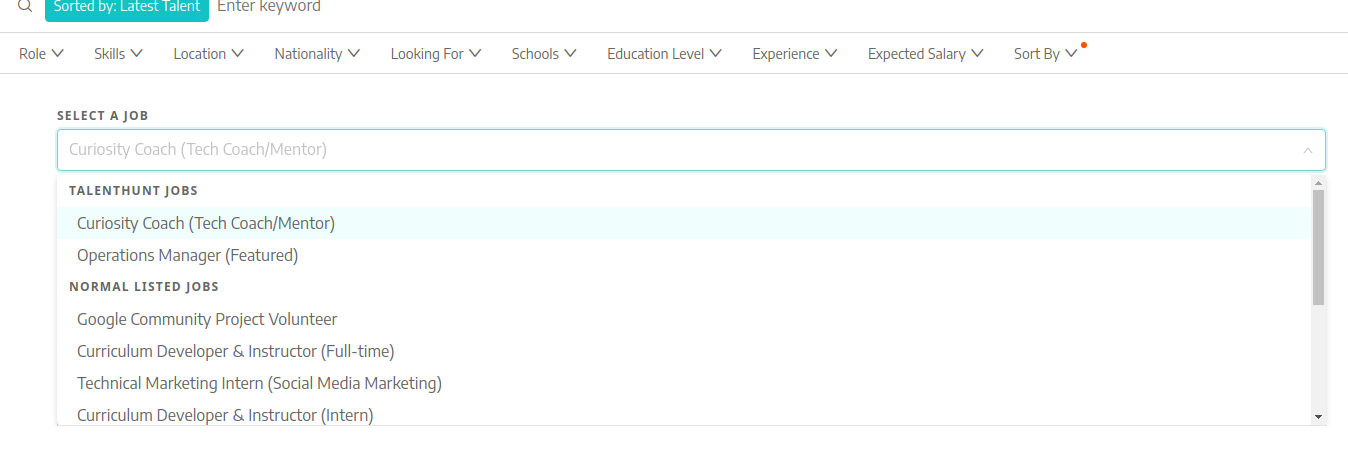
Job Selection for TalentHunt Approved Company^
TalentHunt Approved Company:
Has a job selector as shown in screenshot above. In future, selecting a job will auto-populate the filters with the job requirements (skills, role, location, etc). Right now, there's no functionality behind the job selector.Glints Recruiters:
Does not have the job selector.
Talent Search: Talent Card
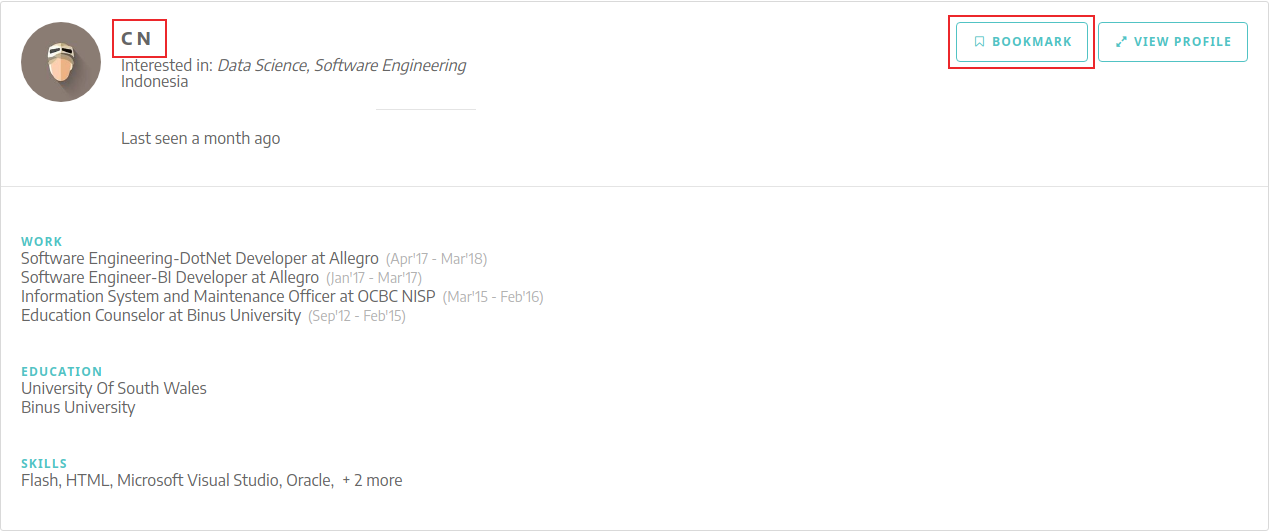
Talent Card for TalentHunt Approved Company ^
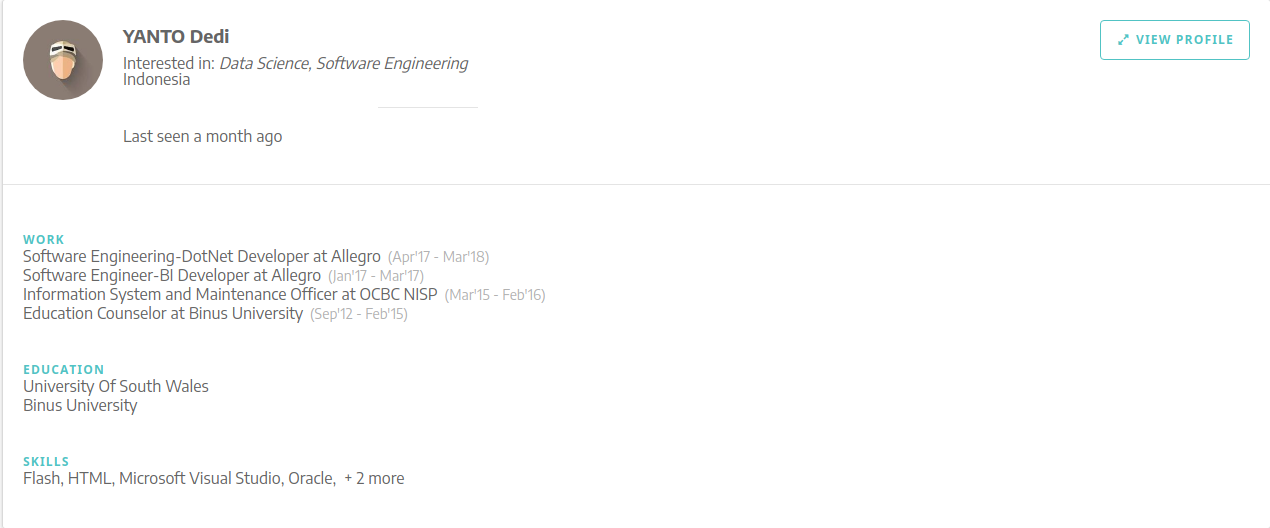
Talent Card for Glints Recruiters ^
TalentHunt Approved Company:
Only the randomized initials of the Talent will be shown. There is also a Bookmark button to save Talent under a TalentHunt Approved Job.Glints Recruiters:
The full name of the Talent will be shown.
Talent Search: Talent Modal
The Talent modal is shown when the Talent card is clicked.
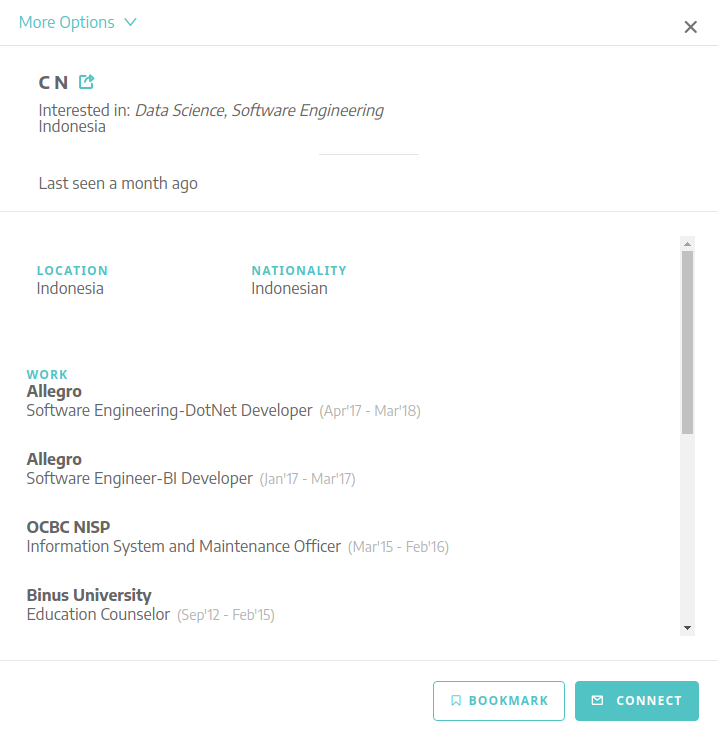
Talent Modal for TalentHunt Approved Company ^
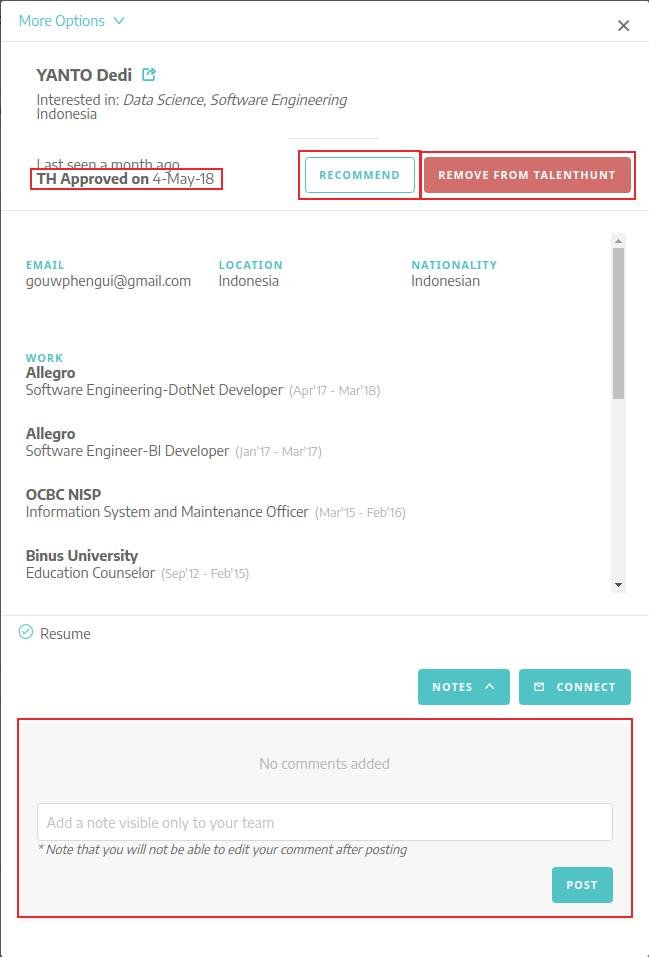
Talent Modal for Glints Recruiters ^
TalentHunt Approved Company:
Similar to the Talent card, the randomized initials of the Talent and the Bookmark button are shown. In addition, there is also a Connect button. No contact information and resume will be shown.Glints Recruiters:
There is a lot more information here for Glints Recruiters.
TH Approved On: A field showing the date this Talent is approved to TalentHunt.
Recommend: Functionality to recommend this Talent to a TalentHunt Approved Job under a TalentHunt Approved Company.
Approve To TalentHunt/ Remove From TalentHunt: Functionality to approve or remove Talent from TalentHunt. In this case, clicking on 'Remove From TalentHunt' will set the Talent status toPENDINGinstead of deleting the Talent from the 'Talent Search - Candidate' group.
Notes: Any note added here can only be viewed by Glints Recruiters.
Talent Search: Talent Page
This page can be accessed by clicking on the 'Open in new tab' button on the Talent modal.

Talent Modal - Open In New Tab ^
The Talent ID is highlighted in red in the screenshot below. Please provide the ID when reporting bugs so the
tech team can resolve it faster. 
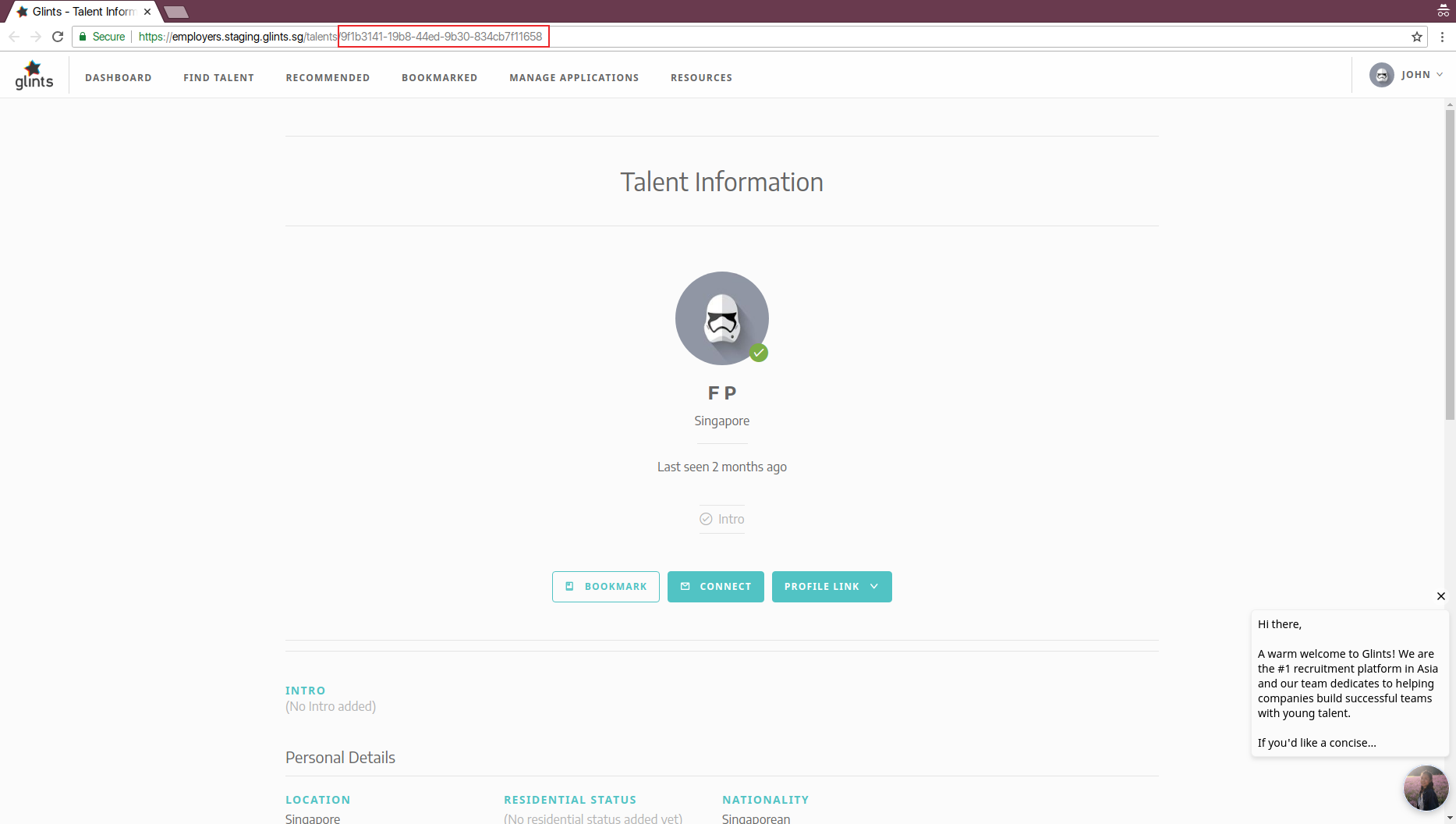
Talent Page for TalentHunt Approved Company ^
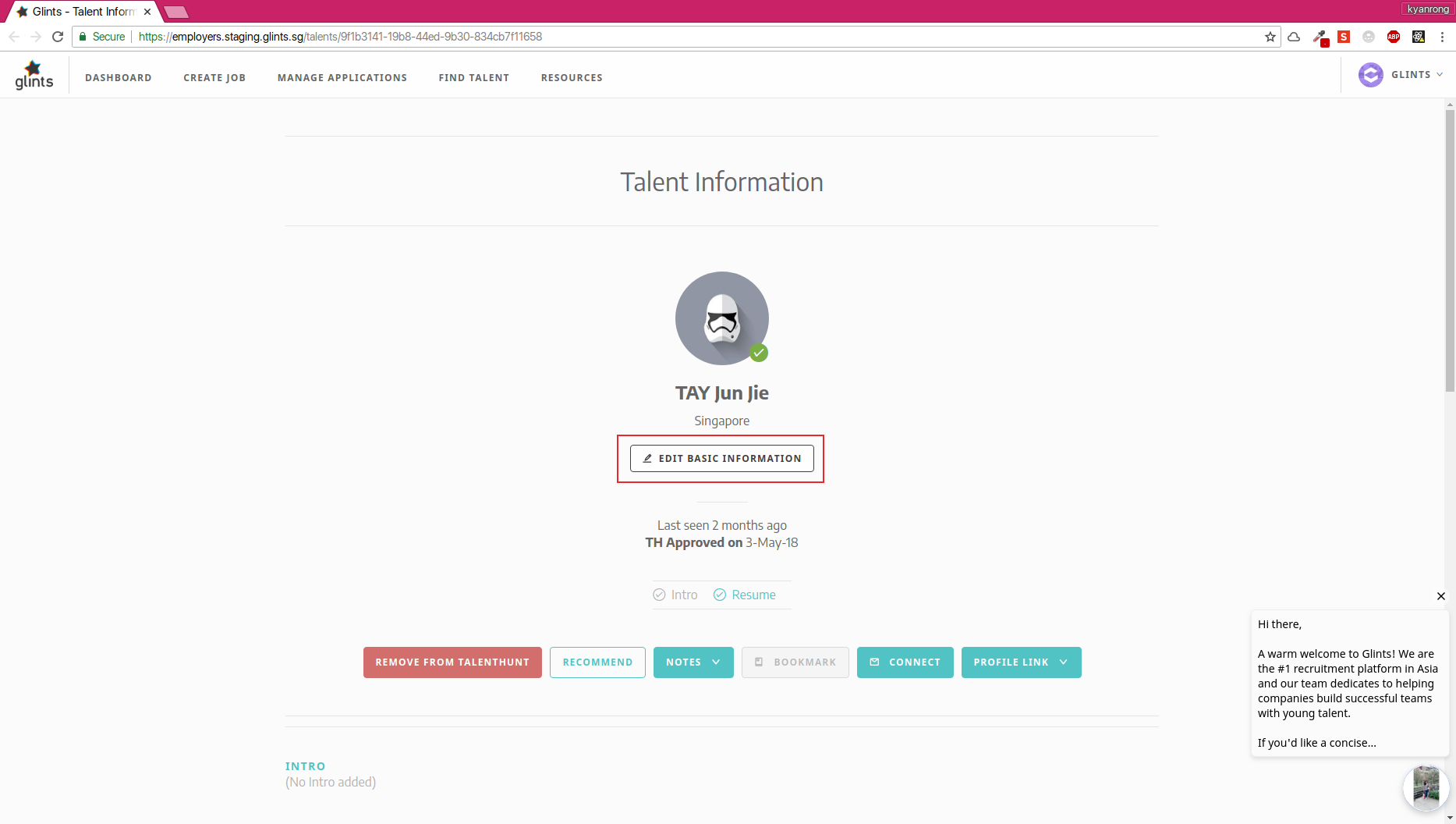
Talent Page for Glints Recruiters ^
TalentHunt Approved Company:
Functionality here is the same as the Talent Modal's.Glints Recruiters:
Functionality here is the same as the Talent Modal's, with an extra functionality. Glints Recruiters are able to edit Talent information.
Recommendations
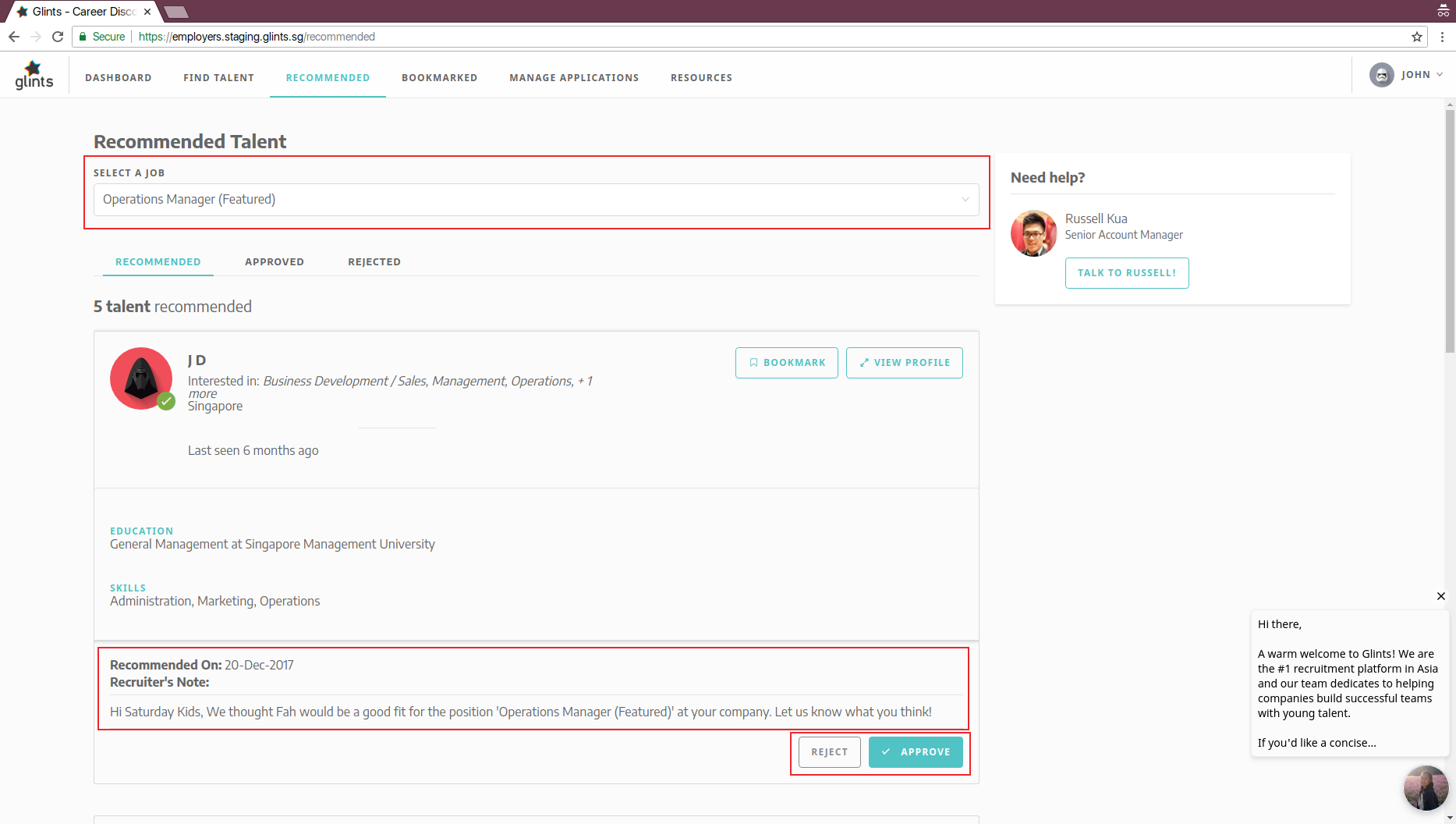
Recommendations Page for TalentHunt Approved Company ^
TalentHunt Approved Company:
This is where Recommended Talent are shown to the company.
Job Selector: Select a TalentHunt Approved job to view recommended Talent.
Recommended On: Date of recommendation.
Recruiter's Note: Note written by Glints Recruiters to the company.
Approve/ Reject: Ability to approve or reject this recommendation. The recommendation card will be moved into the respective 'Approved' or 'Rejected' lists accordingly.Glints Recruiters:
N/A
Bookmarks
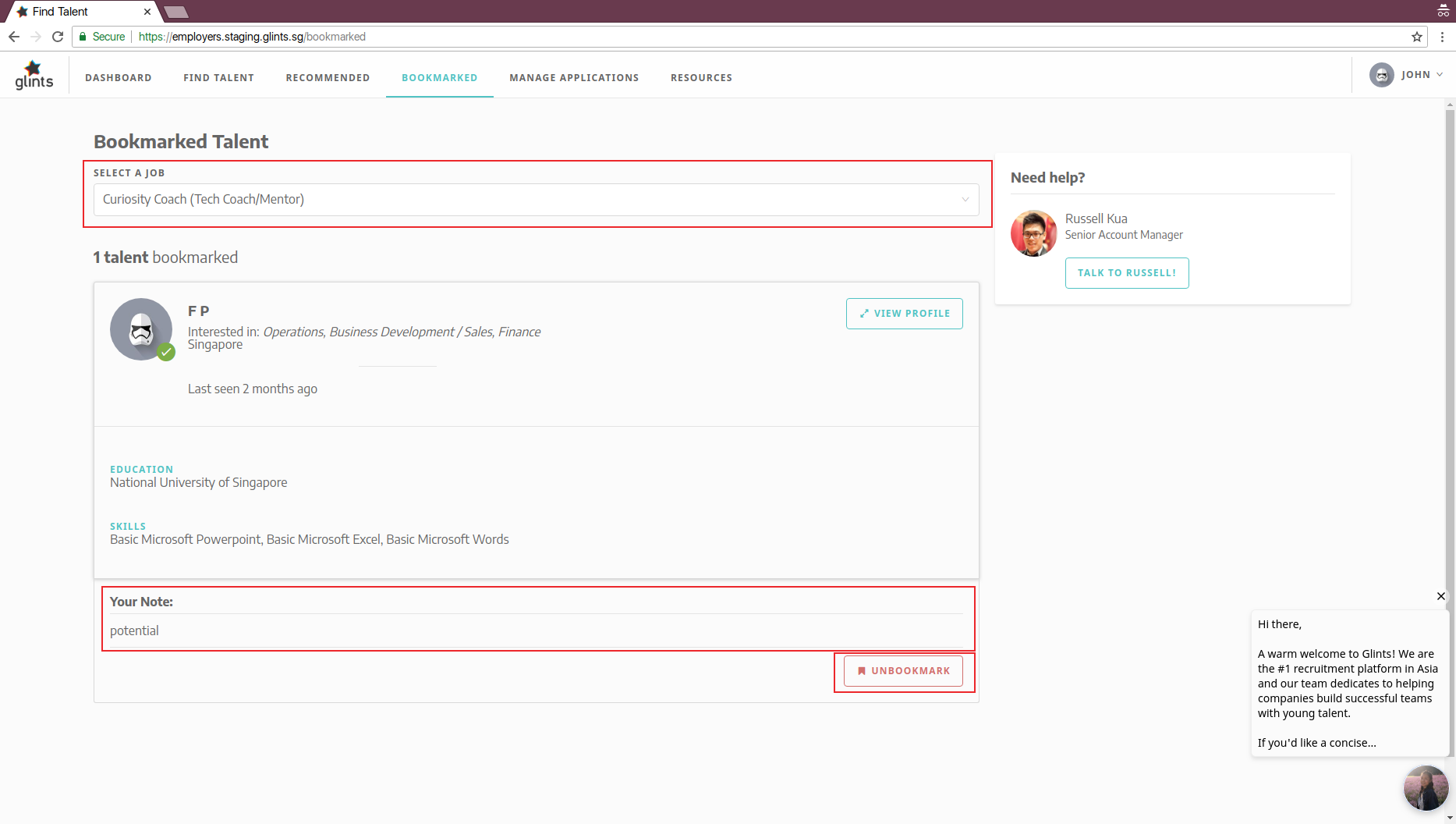
Bookmarks Page for TalentHunt Approved Company ^
This page will be merged into 'Find Talent' page soon.
TalentHunt Approved Company:
This is where Talent bookmarked by the company is shown.
Job Selector: Select a TalentHunt Approved job to view bookmarked Talent.
Your Note: Note written by the company at the point of bookmarking.
Unbookmark: Ability to unbookmark this Talent for this TalentHunt Approved job.Glints Recruiters:
N/A
Connections
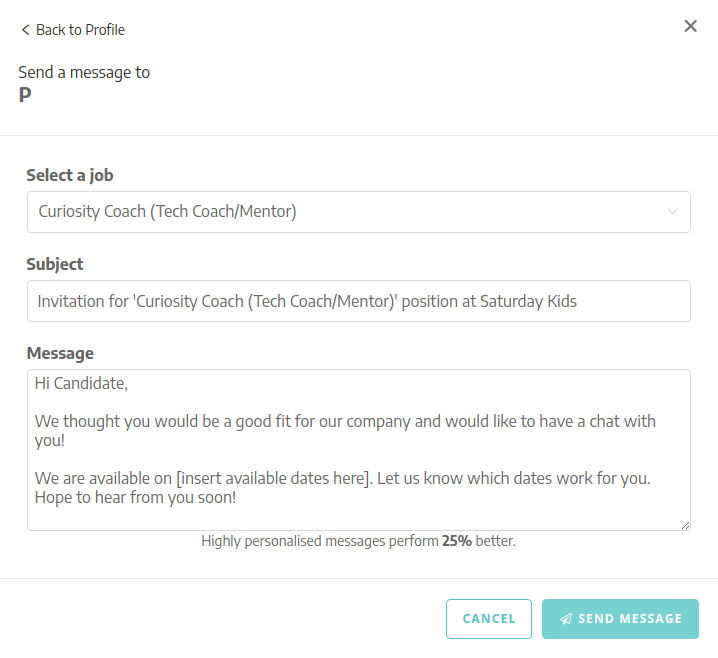
Connect view for TalentHunt Approved Company ^
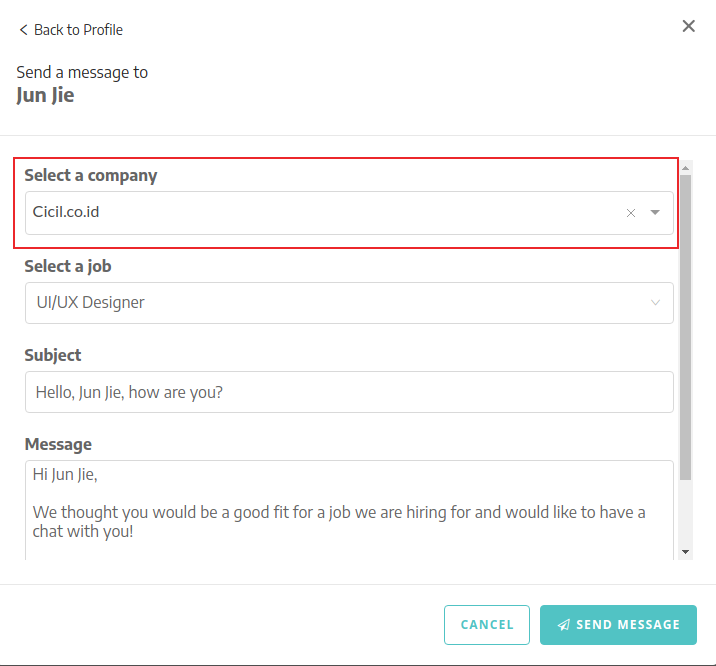
Connect view for Glints Recruiters ^
A TalentHunt Approved company or Glints Recruiter can send an email to a Talent. In future, we will be building our internal messaging system so all communication will be kept within our platform.
TalentHunt Approved Company:
Has to select a TalentHunt Approved job before a message can be sent to the Talent.Glints Recruiters:
Has to select a TalentHunt Approved company before selecting a TalentHunt Approved job.
Group Admins
Group Admin Portal
(To be updated)
Copywriters
Copywriting Portal
(To be updated)